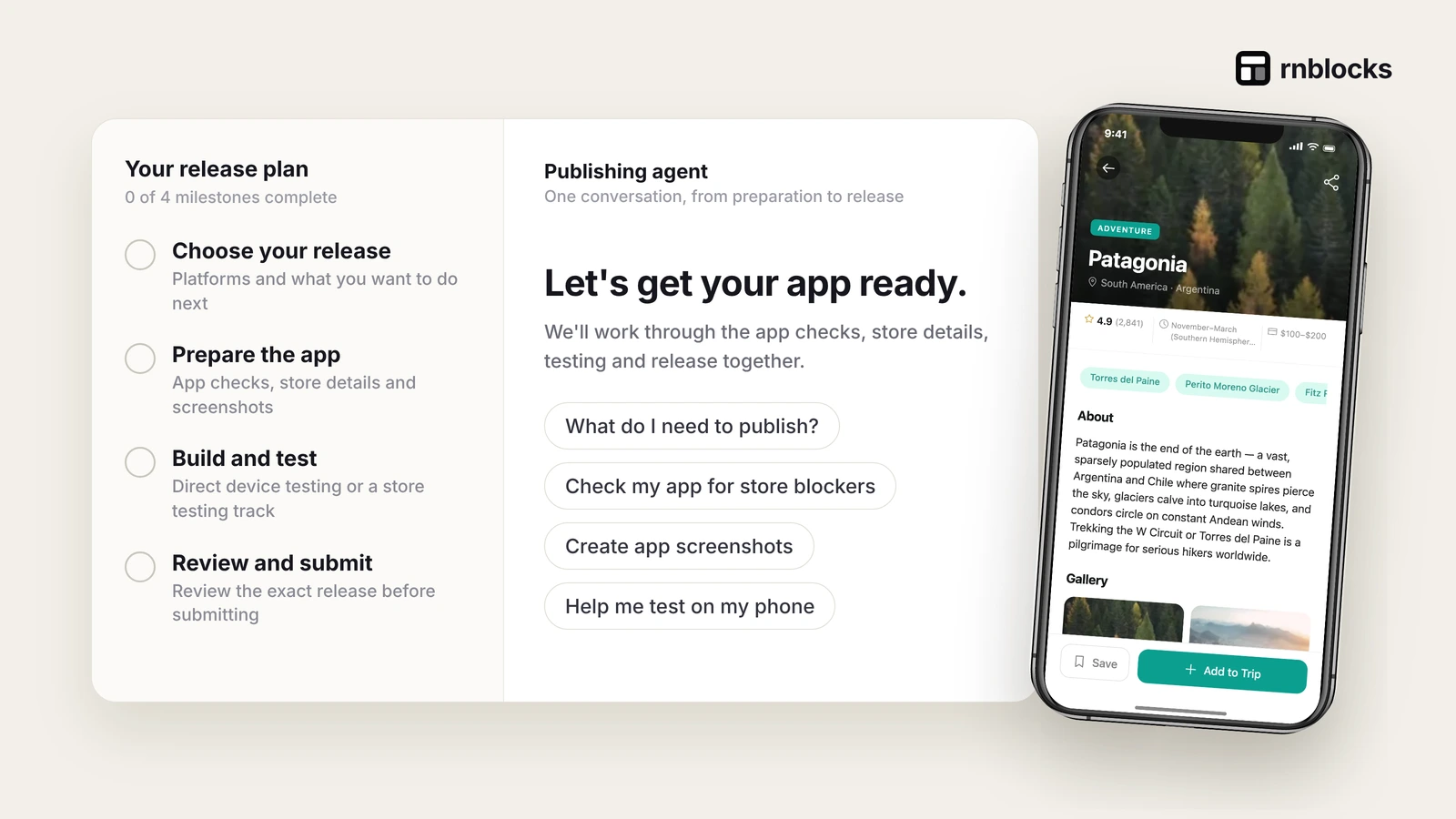
How to Publish an AI-Built App to the App Store and Google Play with a Publishing Agent
How the RNBlocks publishing agent helps with accounts, release identity, screenshots, builds, testing and submission, and which steps stay with you.
How do I publish an app I built with AI?
In RNBlocks, open your app and choose Publish. Tell the publishing agent your goal: test on a phone, invite testers, or prepare a store release. The workspace keeps release settings, store details, screenshots and build results together while the agent checks what is missing and prepares reviewed actions. Apple and Google still review the app, and account steps like enrollment and payments stay with you.

What you need
| For | Accounts |
|---|---|
| Builds | Expo |
| iPhone | Apple Developer Program (US$99/year), App Store Connect app record |
| Android | Google Play Console (US$25 one time) |
The route
- Accounts: connect Expo, Apple and Google Play.
- Release identity: app name, bundle identifier or package name, version.
- Test: a device build, TestFlight or Google Play testing.
- Store assets: screenshots and listing copy.
- Privacy and support: policy URL, privacy answers, review access.
- Submit: the agent sends the exact submission you approve, then checks the result.
Separate states
Preparing a release, uploading a build, submitting it, passing review and making it public are different events. Check the status at each step.
Good first request
Help me prepare this app for iPhone testing. Check what is missing and tell me which accounts I need.
Begin with the release outcome
Ask the publishing agent for a specific next step: 'Help me get this app into TestFlight' or 'Help me prepare an Android build for closed testing.' A request to 'publish everywhere' can hide several independent account, build and review tasks.
RNBlocks' publishing workflow is for apps built in RNBlocks. Do not assume it automatically imports and releases any external project.
Gather the app's identity
Confirm the app name, iOS bundle identifier, Android package name and developer-account owner. Keep those consistent with the build and store records. An icon can change; the distributed app's identity needs more care.
If a business should own the app, use the appropriate business accounts and collaborator access. Do not create a personal listing merely because it is the account already signed in.
Connect the required accounts privately
The workflow can involve Expo, Apple and Google accounts, depending on the destination. Complete sign-in, enrollment, payment and agreements through the appropriate provider. Use private connection forms for keys and files instead of attaching them to an ordinary chat message.
A connection check confirms a particular access check, not unlimited authority for every later operation. If an action is blocked, read its specific error before creating another credential.
Review the materials together
The submitted app, screenshots, descriptions and privacy declarations must agree. Ask the agent to help prepare drafts, then check them against the real app and connected services.
Some provider forms still require work in the store console. For example, Google's app-content questionnaires and account-specific setup are not all interchangeable with an API upload. Follow the workspace's supported steps and complete the remaining console requirements.
Build, upload, submit and release are separate
| Milestone | Meaning |
|---|---|
| Signed build | An artifact was produced for a destination |
| Installed test | The artifact runs on a suitable device |
| Uploaded | The store received the build |
| Submitted | The intended review or testing action was completed |
| Approved | The store accepted the submission |
| Released | The app is available to the selected audience |
Check the actual result before moving to the next stage. An Android internal-testing draft is not a public Play release. A processed iOS upload is not automatically an App Store submission.
Keep one useful release checklist
Track missing accounts, app checks, store assets, review access and the exact build. If a step is interrupted, check whether the provider completed it before sending the same action again.
After a successful submission, monitor the provider's status and messages. Apple and Google decide review outcomes. The agent can help with preparation and supported operations; it cannot promise approval or replace testing the release on a real phone.
Can the agent approve the app for the store?
No. Apple and Google decide review outcomes. RNBlocks can help prepare the app and perform supported workflow steps, but a successful tool action is not a promise of approval.
Do I need both store accounts at the start?
Not if your immediate goal uses only one destination. Begin with the platform your first testers need. Prepare the other account when it becomes relevant, while keeping shared project behavior tested.
Can I change my screenshots after a build?
You can prepare and revise assets separately, but the listing must represent the actual version submitted. Follow the store's metadata process and inspect the final selected materials before review.
What if an upload is interrupted?
Check the provider's current state before repeating it. The build may already exist in the store even if the local response was lost. Use identifiers and version information to avoid duplicate actions.
How do I know the release is complete?
Check the selected testing or public audience in the store, then install the intended version and complete the main task. A saved release plan or exported ZIP does not finish that journey. If the goal was TestFlight, verify tester access. If the goal was public release, verify the listing and installation in the intended regions.
Questions people also ask
Can the agent submit my app without me?
The agent prepares and sends actions you approve. Account enrollment, agreements and payments stay with you.
Build it with RNBlocks
Build and publish iOS and Android apps with an AI agent in RNBlocks. Start free with the main journey, then use our publishing workspace for the supported release steps. Choose one destination and work toward an actual tester installation or store submission.
Choosing an AI app builder that also helps you publish
Ask what “publish” includes before choosing a builder. A web link, a phone preview, a signed build, a TestFlight upload and an App Store submission are different outcomes. Decide which one you need next and check the workflow for that specific milestone.
RNBlocks’ publishing agent helps prepare apps built in RNBlocks for release. That includes working through the relevant project setup, app details, assets, builds and store preparation. Your Apple, Google Play and Expo accounts still matter, and the stores make their own review decisions. Connecting an account alone does not mean the app has been submitted.
A useful evaluation is to trace your project from the first working task through the release checklist. Can you find the app identity, understand which account owns it, identify missing privacy or support information and see what stage the build has reached? The next action should be clear even when something fails.
If you have not built the app yet, start with a small, testable version and use phone testing before preparing store assets. If your app was built elsewhere, check the supported route first. Do not treat this workflow as a general external-project import or publishing service.
Ready to build?
Build, connect and publish iOS and Android apps with AI.