How to Test Your App on Your Own Phone with Expo Go
Open the app you are building on your own iPhone or Android phone with Expo Go, what works there, and when you need a test build instead.
How do I test my app on my own phone?
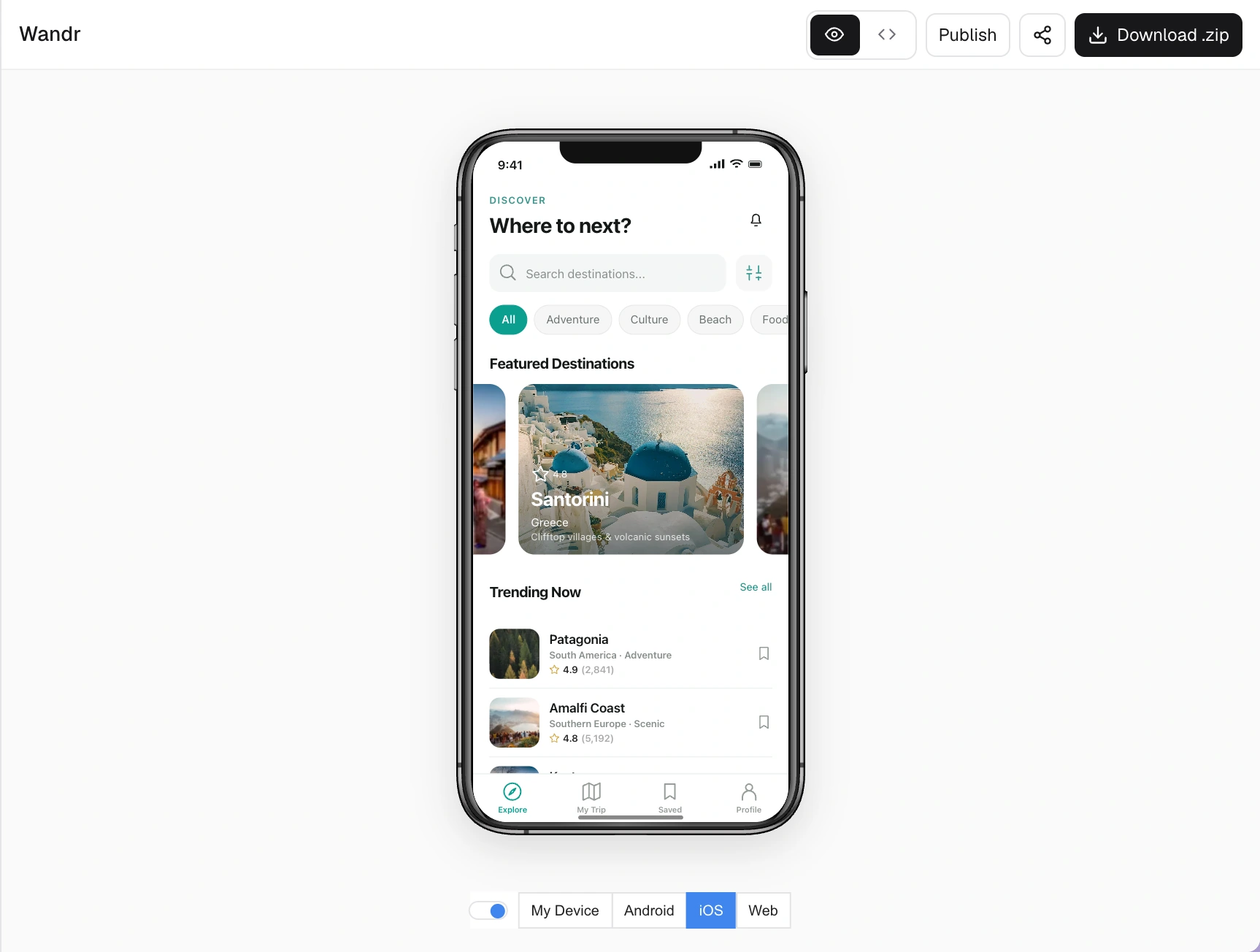
Install Expo Go from the App Store or Google Play. In RNBlocks Studio on a computer, open Preview, choose My Device and scan the QR code. On your phone, open Studio, switch to Preview and tap Open with Expo Go. Your app runs on the phone in seconds.
What Expo Go is good for
- Feeling the real size of buttons and text.
- Checking that the keyboard does not cover inputs.
- Trying navigation and gestures with your thumb.
What needs a test build instead
Expo Go includes a fixed set of native features. Some libraries, browser-based OAuth sign-in with your own redirect scheme, and parts of Sign in with Apple need a development or test build. A store release always needs its own build.
A quick on-phone checklist
- First launch with no data.
- The main task from start to finish.
- Long text and a small phone.
- Close and reopen: is saved data still there?
If it does not open
Make sure the preview session is running, read the visible error, and tell the agent what you tapped and on which platform.
Expo Go runs a project inside another app
When you open a supported project in Expo Go, you are using its prebuilt native environment. Your project can use the features available in that environment. It does not yet have its own independently installed app binary.
That makes Expo Go useful for early interface and supported interaction checks. It cannot establish that every custom native integration will work in a production build.
Prepare the phone and project
Install the suitable Expo Go version, open the project in RNBlocks and use the phone-preview instructions shown there. Keep the session available while connecting. Check that the QR code or link opens the expected project.
If it fails, identify whether the problem is project access, SDK compatibility, connectivity or a runtime error. Those require different fixes. Repeatedly scanning a code does not fix an unsupported native dependency.
Watch for project-access changes
Expo's published-update rules restrict EAS Updates opened in Expo Go to projects you own or organizations you belong to. This matters when sharing with people outside your team. Do not assume every published QR code is a public beta distribution route.
Use TestFlight, an appropriate Android testing track or a suitable installed development/internal build when the audience or features require it.
Use the phone to test phone problems
| Task | What to look for |
|---|---|
| Fill a form | Keyboard covers fields or the submit button |
| Navigate back | Unexpected screen or lost input |
| Read a long title | Truncation and text scaling |
| Choose a photo | Permission, cancellation and large-file behavior |
| Reopen the app | Saved information and session state |
A smaller browser window cannot reproduce every device behavior. Use a real phone for the important interactions, while recognizing Expo Go's own limits.
When to make a development build
Use a development build when you need native libraries or configuration absent from Expo Go, or when testing features such as remote push. This gives the project its own native environment.
A development build is still a testing route. Store distribution uses the appropriate release build and signing. Keep the destination clear before starting a build.
Before inviting someone else
Open the invitation or installation route yourself from the intended kind of device. Give the tester one task and the build or project version they should use. Ask for the failed step rather than credentials or private records.
The useful outcome is a person completing the journey on their phone. A QR code appearing on your screen only proves that a link was generated.
Why does the browser work while the phone fails?
The environments can differ in native dependencies, permissions, authentication redirects and network access. Use the actual error and project configuration to identify which applies. Do not assume the UI needs redesigning because a connection failed.
Can my friends use the same QR code?
It depends on the route and project access. Published EAS Updates in Expo Go have ownership and organization restrictions. For wider testing, use an appropriate distribution method rather than promising unrestricted access to a development preview.
Do I need a Mac for every phone test?
Not necessarily. Supported preview and cloud-build workflows can be used without local Xcode. A physical iPhone, simulator and signed distribution build still have different requirements. Choose the environment from the task.
What if the preview looks old?
Check the selected project, current saved result and refresh behavior before generating changes again. Confirm which build or update the phone is opening. Repeating the prompt can create extra work without changing the stale session.
What is the next milestone?
Once the main task works in a supported preview, test the project's own native configuration with an installed build. Use beta distribution when inviting outside testers. Keep the device and build number with feedback so a later fix can be checked against the version that actually failed.
Questions people also ask
Is Expo Go free?
Yes. Download it from the App Store or Google Play.
Can other people test my app with Expo Go?
For testers, use a proper test build through TestFlight or Google Play testing instead.
Build it with RNBlocks
Open your RNBlocks app and use the supported phone-preview route to test its main task. When Expo Go is not enough, ask our publishing agent for the appropriate device-testing step. Keep moving toward an app someone can actually install and use.
Ready to build?
Build, connect and publish iOS and Android apps with AI.