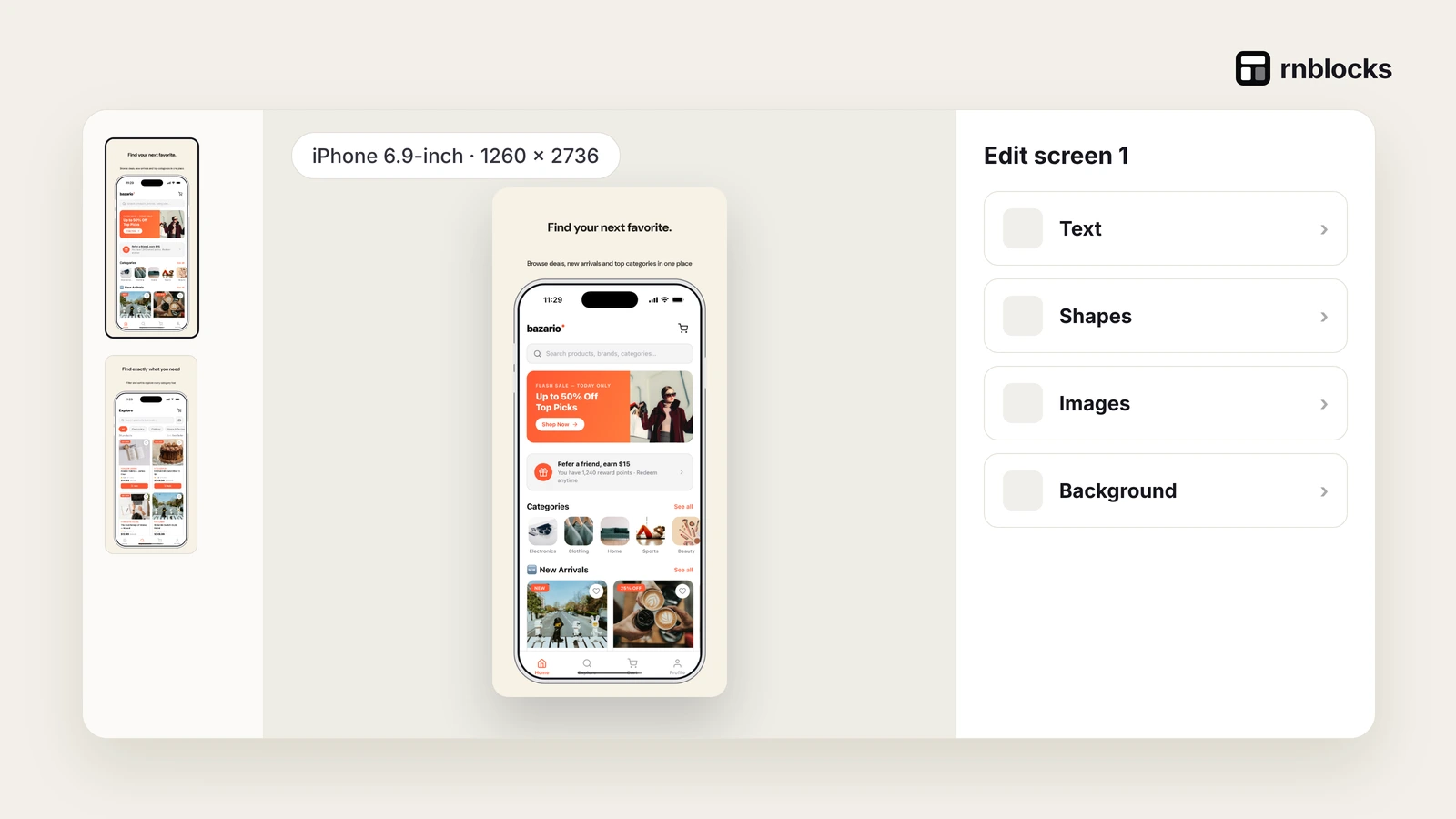
How to Make App Store and Google Play Screenshots Automatically
Create store screenshots and listing assets from your real app screens in the RNBlocks Publish workspace.
Can I make store screenshots automatically?
Yes. In RNBlocks, the Publish workspace can design store screenshots from your app's real screens, with headlines, in the sizes the stores ask for. You review and adjust them before they are used in your listing.

How it works
- Open your app and choose Publish.
- Ask the publishing agent to create store screenshots, or open the screenshot tools.
- Choose which screens tell the story: lead with the main task.
- Edit headlines so each one states one benefit.
- Review every image against the build you will submit.
Tips
- Use realistic content, not test data.
- Keep headlines to five to seven words.
- Make sure every feature shown exists in the build.
Let the real app determine the set
Start with screens that explain a complete task. For a travel app, that might be discovering a place, reading its details and saving it to a trip. Do not ask for unrelated promotional scenes that imply features absent from the app.
Use representative sample content so the generated set looks coherent without exposing private records. Capture the app after its text and images have loaded.
Describe the result you want
A useful request is: 'Create store screenshots for my travel app. Show discovering places and saving a trip. Use the actual app screens, short readable headlines and the app's existing colors.'
Name the supported devices and store destination. Apple and Google use different asset requirements. Do not assume one export fits every phone and tablet listing.
Review capture and design separately
First inspect the captured screens. Are they the intended screens, with the right state and no loading overlay? Then review the surrounding design: headline, supporting text, spacing, background and device frame.
A nice frame cannot fix an empty or outdated capture. Likewise, a sharp capture can become difficult to read if it is placed too small inside the final image.
Iterate in the same conversation
Ask for a change that describes the whole intent: 'Keep the screen capture and background. Shorten the first headline and increase the supporting text enough to read on a phone.'
Review the updated preview after the action completes. If you manually edit text or placement, check the final rendered asset rather than relying only on the value in an input field.
Make each screenshot earn its place
| Position | Useful role |
|---|---|
| First | Explain the main job the app does |
| Middle | Show the important steps or benefits |
| Later | Explain a relevant secondary feature |
There is no need to fill every allowed slot with a repetitive screen. A shorter coherent set can explain more than a longer set of generic headlines.
Check exports before uploading
Open each downloaded file at full size. Inspect small text, phone edges, line wrapping and image quality. Then view it at a realistic phone size. The headline should stay readable without overwhelming the app screen.
Compare the assets with the actual submitted build. If the app changes, update the corresponding screenshots. Keep editable originals so future revisions do not require recreating everything.
The automation saves preparation work, but the final check remains important. The store image should accurately explain what a new user can do after installing, not merely look polished in the editor.
Does automatic mean I should accept the first set?
No. Review both the captured app state and the design around it. The agent can save preparation time, but you still decide whether the images explain the app and match the released features.
Can I edit the wording myself?
Use the available editor controls for manual changes, then inspect the updated asset. Check line breaks, spacing and the exported result, not only the text inside the edit field.
How many screenshots should I make?
Meet the store's requirements and use enough images to explain the important task. Do not fill every slot with repeated screens. Start with a coherent small set and add another image when it communicates something useful.
What if the source capture looks blurry?
Recapture at a suitable resolution rather than enlarging a small image. Inspect the app text and edges before placing it into a frame. A high-resolution export cannot recover detail absent from the source.
What should stay editable?
Keep the screenshot order, original captures, headlines and design settings where possible. Future app updates may change one screen or phrase without needing a completely new set. Review the full sequence after a change so the first image and following screenshots still tell the same story.
Questions people also ask
Which sizes do I need?
Apple needs iPhone screenshots for its largest required display size, plus iPad if your app supports iPad. Google Play needs at least two phone screenshots and a 1024 x 500 feature graphic. Requirements change, so the publishing workspace and each store's console are the final check.
Can I edit the screenshots later?
Yes. Update them for a new version whenever your screens change. Out-of-date screenshots are a common reason for rejection.
Do screenshots affect downloads?
Yes. The first images help explain the product quickly. Lead with the main task and compare results using actual store analytics where available.
Common mistakes
- Using placeholder content or test accounts in the images.
- Headlines that describe features instead of outcomes.
- Forgetting to update screenshots after a redesign.
Build it with RNBlocks
Create your app and its store screenshots in RNBlocks. Ask our publishing agent for a set based on the real screens, refine the design and wording, then inspect the exports. This keeps the product and the materials used to explain it together.
Choosing an app store screenshot generator
A useful screenshot tool should help you explain the app, not just place a phone inside a decorative background. Check whether you can use real screens, edit the headline and supporting text, keep a consistent layout and inspect the result at the size people will actually see.
RNBlocks includes a store-asset workflow for apps built in RNBlocks. You can work with the agent to prepare screenshots and keep refining the assets, then make manual edits where needed. The important check is the final image: readable copy, a genuine app screen and no cut-off controls or misleading features.
Plan one message per screenshot. For a shopping app, a sequence might explain finding a product, checking its details and reviewing the basket. Avoid claiming that payment or delivery works merely because a sample screen appears in the design. Capture the state that matches what the app can actually do.
This guide describes the integrated RNBlocks workflow, not a universal screenshot editor for every external app. If you are comparing standalone generators, verify which image inputs and export sizes they support. For an RNBlocks project, start from the store-asset documentation, review each exported image and use the store’s current requirements for the target listing.
Ready to build?
Build, connect and publish iOS and Android apps with AI.