Why Does My App Feel Slow? Five Common Causes and Fixes
Most app slowness is waiting: network round trips, oversized images and long lists. How to find the cause and make an app feel fast.
Why does my app feel slow?
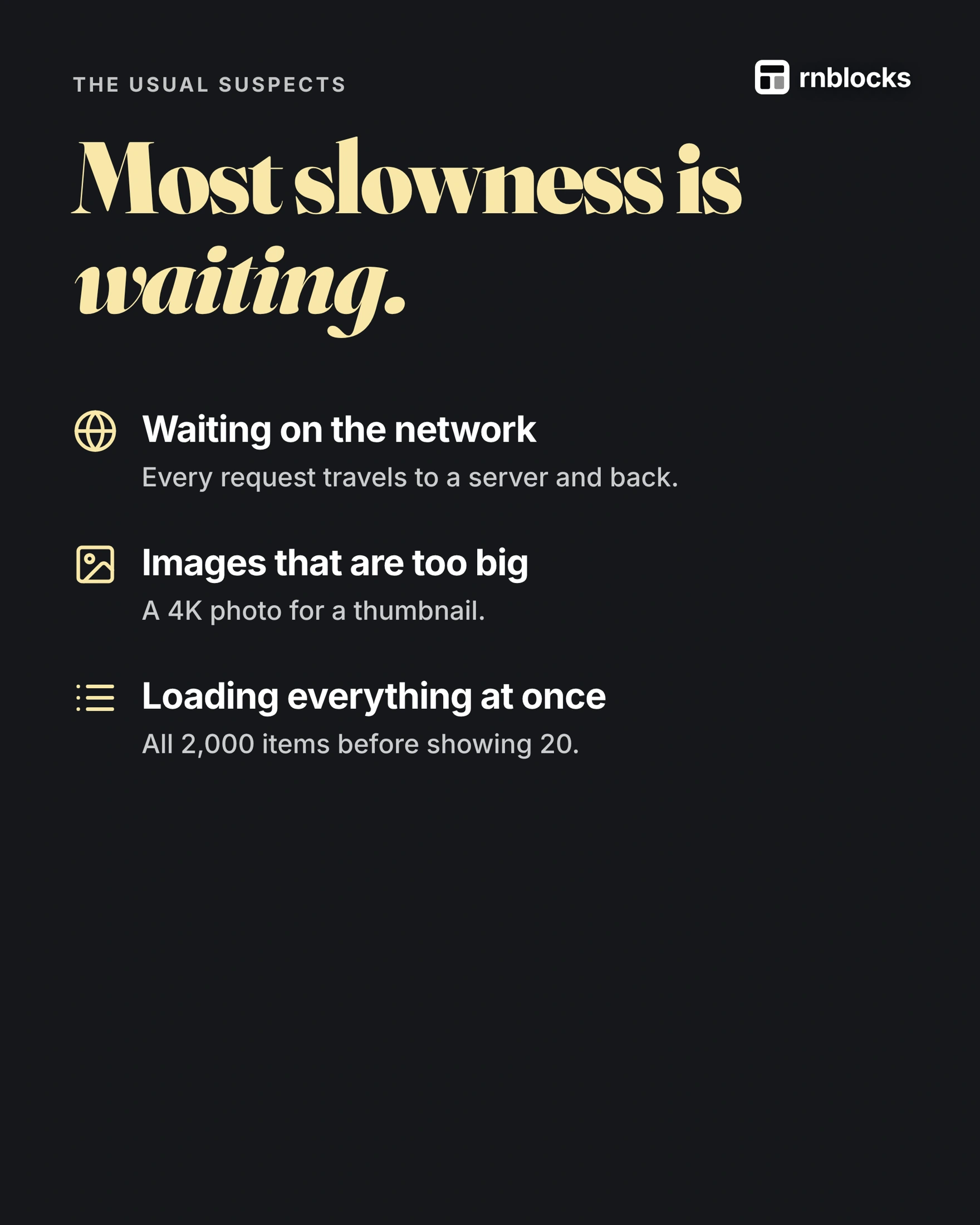
Most slowness is waiting: on the network, on images that are too big, or on lists that load everything at once. Fix the waiting first, then make the app feel fast by showing progress and reacting to taps instantly.
1. Waiting on the network
Every request travels to a server and back. Ask less often, combine requests where you can, and keep a copy of answers to refresh quietly. Keeping copies is called caching.
2. Images that are too big
A 4K photo for a thumbnail wastes time and data. Send the size you actually show. Smaller files load faster and use less mobile data.
3. Loading everything at once
Show the first 20 items, then load more as people scroll. The term is pagination.
4. Nothing shows while it works
Show a placeholder that looks like the content, called a skeleton, so people know something is happening.
5. Taps that wait for the server
Update the screen first and confirm with the server after. If the server fails, undo and explain.
Test it the hard way
- On a slow connection: office Wi-Fi hides problems.
- On an older phone, not just the newest one.
- With a lot of data: 500 items, not the 3 in your demo.
Find out which kind of slow you have
'It feels slow' can mean a delayed launch, scrolling that stutters, a search that waits for a network response or a button with no visible feedback. Each has a different cause.
Write down the device, build and exact action. Time the journey approximately and repeat it with the same conditions. Change one thing at a time so you can tell whether it helped.
Separate waiting from rendering
If a list arrives late but then scrolls smoothly, investigate the request and database query. If the list is already loaded but moving it stutters, investigate the amount of interface work and image processing. If the action completed but the person cannot tell, improve the feedback.
A spinner can explain waiting. It does not make the underlying operation faster. Optimizing the database will not fix a giant image being decoded on the phone.
Use realistic content and devices
A screen with three sample cards can feel fast while the same screen with a thousand records struggles. Load a realistic amount of data and use images with dimensions appropriate to their displayed size. Avoid downloading full-resolution originals just to show small thumbnails.
Test on a device closer to your audience's hardware, not only your newest phone. Development tools and debug builds can also affect performance, so check the appropriate release build before drawing conclusions.
Make a small diagnosis table
| Observation | First investigation |
|---|---|
| First launch is slow | Startup work and bundled assets |
| Search waits after every letter | Request frequency and cancellation |
| Scrolling stutters | List rendering and image size |
| Saving feels unresponsive | Feedback and network duration |
| Same screen downloads repeatedly | Caching and refresh rules |
Do not add caching without deciding how fresh the information needs to be. Yesterday's forecast can be labeled as old; yesterday's available booking slot should not be treated as current availability.
Verify the improvement
Repeat the original task with the same data and device. Check a slow connection, an empty response and a larger list. Confirm that the improvement did not introduce stale data or hide an error.
Record the practical result: 'The list shows its first items sooner and remains smooth while scrolling.' Avoid claiming the whole app is fast after improving one screen. Performance work is most useful when it removes a specific delay people actually encounter.
Is slow internet always the cause?
No. A device can be busy rendering a large interface or decoding oversized images even when the network is fast. Conversely, a simple screen can wait on a slow server response. Observe when the delay occurs before choosing a fix.
Should I load everything at startup?
Usually only load what the first useful screen requires. Fetch additional information when needed or in a deliberate background process. Make sure a delayed optional request does not prevent the main task from becoming usable.
Can animations make performance worse?
Yes, particularly when they trigger expensive layout or rendering work. Use motion with a purpose and respect reduced-motion preferences. A transition should not hide a long wait or delay access to an already-ready screen.
How do I test a search field?
Type a query, change it quickly and clear it. Confirm an older response cannot replace a newer result. Limit unnecessary requests and show loading or empty results clearly. This checks correctness as well as speed.
What should I improve first?
Choose the delay that prevents or repeatedly interrupts the main task. Record a baseline, make a focused change and repeat the same test. Do not rebuild the whole app because one screen feels slow, and do not call the whole app optimized after changing only an image.
Keep the person informed during real work
When an operation genuinely takes time, preserve the relevant input and show a state that explains the wait. Avoid replacing the entire screen if only one section is refreshing. This can make the task feel steadier without claiming the request became faster. Still measure and address the underlying delay when it repeatedly interrupts use.
Build it with RNBlocks
Use the same RNBlocks conversation to report the exact slow action, device and conditions. Ask our agent to investigate that path, then repeat the baseline test. Focused changes are easier to verify than asking for an unexplained redesign of the whole app.
Ready to build?
Build, connect and publish iOS and Android apps with AI.