Where Did My Saved Data Go on My New Phone? Local vs Cloud Storage
Why saved items sometimes vanish on a new phone: local storage, cloud storage, sign-in and sync explained simply.
Why did my saved items disappear on my new phone?
Because the app kept them on the old phone. Saved items live where the app put them: either in local storage on the device or in cloud storage on a server linked to your account. Account-linked cloud saving can make it available on another device. Device backups or deliberate exports are separate ways local data might be restored.
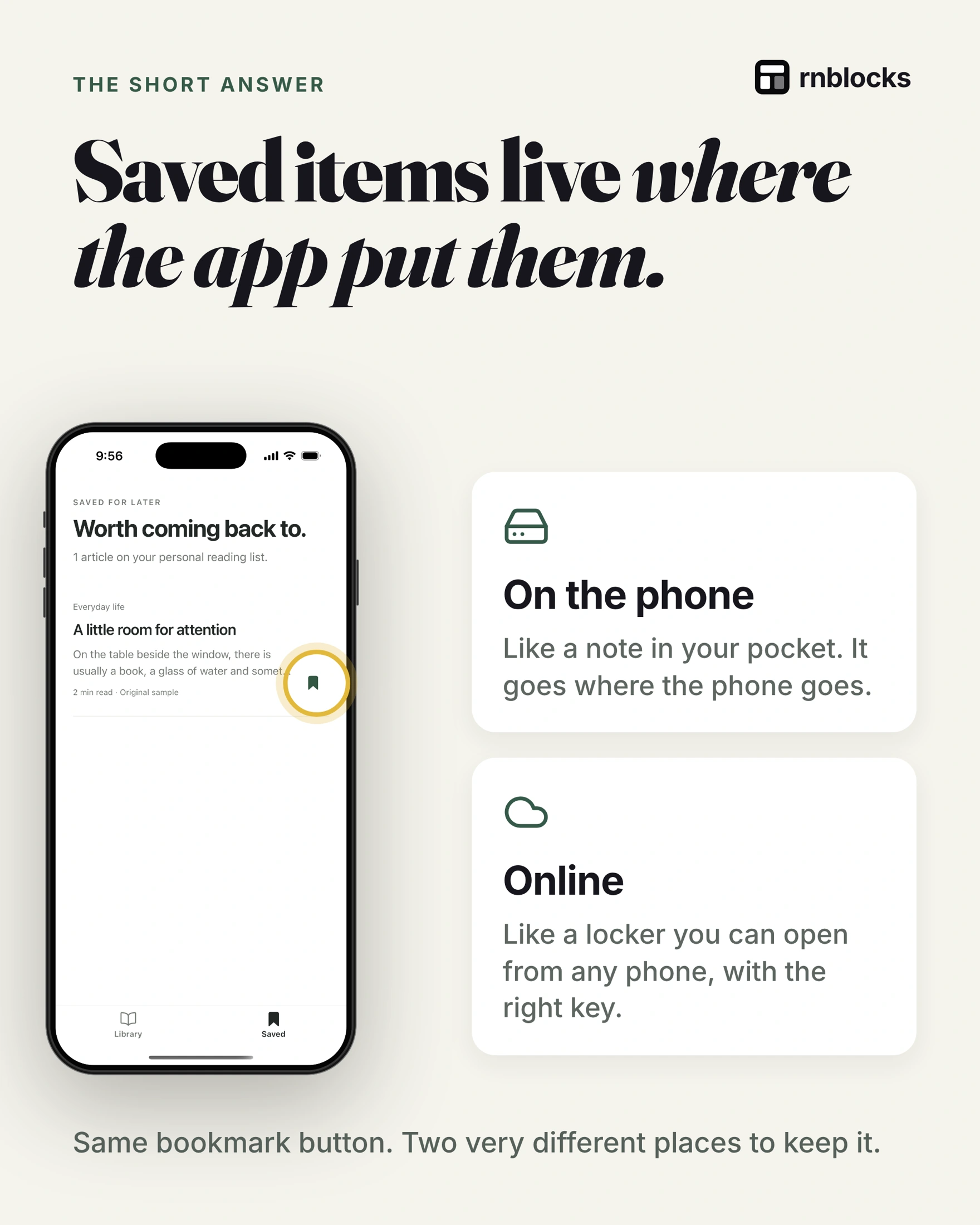
Option 1: kept on the phone
- Works with no signal: nothing to send, nothing to wait for.
- Gone with the phone: lose it, replace it or delete the app, and the list can go too.
The term is local storage.
Option 2: kept online
Your phone sends the bookmark to the app's service (the backend), which saves it in a database. Any phone can ask for it later. This is often called cloud storage.
Signing in is the key, not the locker
- Sign-in proves who you are (authentication).
- Storage keeps your things. Without online storage, signing in on a new phone has nothing to bring back.
Saved it on a plane, then what?
With no signal the phone keeps the bookmark for now. When it is back online, the app sends it to the service, and every phone sees the same list. Many apps keep a copy in both places. The term is sync.
Where should your app keep things?
- Would losing it upset someone? Notes, orders, progress: keep them online.
- Will people switch phones? They will expect their things to follow them.
- Must it work offline? Keep a copy on the phone, then sync.
Not everything needs the cloud. A dark-mode setting can stay on the phone.
A login screen does not move the records
An app can authenticate a person while still saving their favorites only on that device. The account identifies them, but the saved list needs an actual upload and retrieval process.
To test this, save a place on one phone, sign in on another and look for it. If it is missing, check whether the first save reached the backend and whether the second phone requested records for the same account. Do not assume the database lost the data merely because the screen is empty.
Cloud, backup and sync mean different things
A backup is a copy you can restore after a loss. Sync keeps active devices updated as changes occur. Cloud storage means data is held remotely, but does not by itself specify how quickly devices agree or whether a deleted item can be recovered.
Operating-system backups may restore some local app data, depending on the app and device settings. That is different from the app deliberately making the same saved list available to every signed-in device.
Example: saving a place without signal
A traveler saves a museum while offline. The app can keep the record locally and show 'Waiting to sync.' When connectivity returns, it uploads the change and marks it synced.
If the app claims 'Saved to your account' before that upload succeeds, the person may replace their phone and reasonably expect the item to appear. Accurate status wording is part of keeping the product's promise.
Check these separate cases
| Test | What it reveals |
|---|---|
| Close and reopen the app | Local persistence |
| Sign out and sign back in | Account association and retrieval |
| Open a second device | Cross-device saving |
| Save without signal, then reconnect | Pending changes and sync |
| Switch to another account | Separation of private records |
Use sample accounts and check deletion as well as creation. A place removed on one device should not unexpectedly return because another device uploaded an old copy.
Explain the storage promise before release
If the first version is local-only, say that plainly and consider an export or backup route for valuable data. If it syncs, define which records follow the account and what happens while offline.
You do not need a complicated sync engine for every app. You do need behavior that matches what users are told, particularly when they change phones, reinstall or lose connectivity.
Can signing into the wrong account look like data loss?
Yes. Email login, Google login and Apple login can create or select different accounts depending on the authentication setup. Check the account identity before concluding records were deleted. Avoid exposing full identifiers in public support messages.
Should logout erase everything on the phone?
Decide from the privacy needs and offline design. Private cached information must not become visible to the next person signing in. Public catalog information may be safe to retain. Test account switching as a separate journey.
Is cloud storage a backup?
Not automatically. If deletion synchronizes across devices, a mistaken deletion may disappear everywhere. Backups, recovery windows and exports are separate capabilities. Tell users what the product actually supports rather than treating 'in the cloud' as a promise of unlimited recovery.
What should the app show during a failed save?
Keep the person's work when possible and distinguish a local pending change from a confirmed remote save. If retrying could create a duplicate, check the existing operation first. The wording should follow the state the application can confirm.
Build it with RNBlocks
Ask our agent in RNBlocks to keep a user's saved items available on another device through a supported Supabase workflow. Describe that behavior explicitly, review the setup and test it with two accounts. Start free with a small saved-list app instead of a larger feature collection.
Ready to build?
Build, connect and publish iOS and Android apps with AI.