Interface, Logic and Data: What Makes an App Button Actually Work
Every button does three jobs. Follow one Add to bag tap through the interface, the logic and the data, and learn why first apps often build only one.
What makes a button in an app actually work?
A button that changes saved information depends on three parts: the interface (what you see and tap), the logic (the rules that run when you tap) and the data (what gets saved). First apps, especially quick AI-generated ones, often build only the interface, so the button looks finished but nothing real happens.
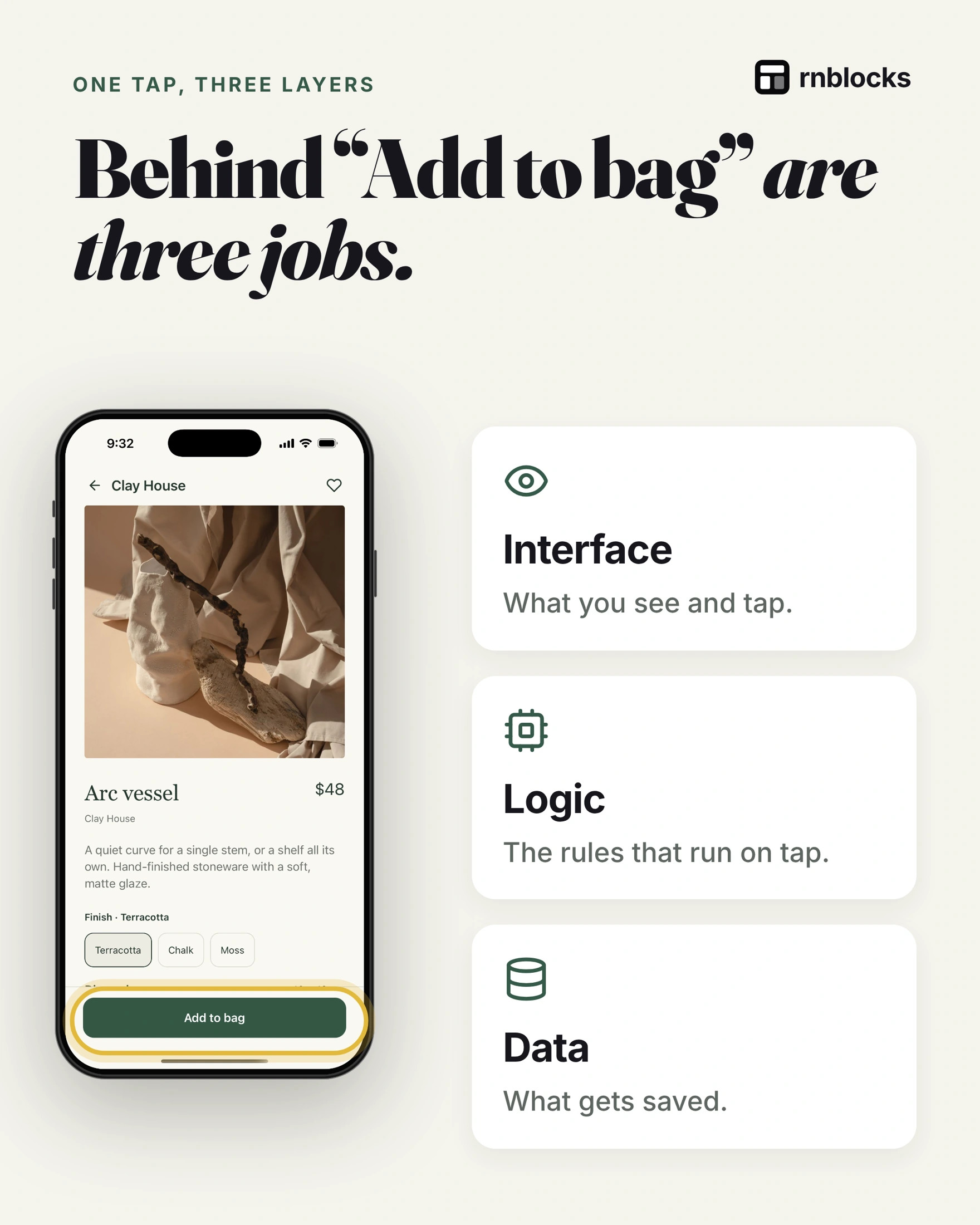
Job 1: the interface
The button itself, its label, and how the screen changes afterwards.
Job 2: the logic
Tapping "Add to bag" runs rules:
- Which item, which finish? Arc vessel, Terracotta, quantity 1.
- Is it still available? If not, say so instead of adding it.
- Recalculate the bag: subtotal becomes $48, calculated rather than typed.
Job 3: the data
The bag has to be saved somewhere: on the phone (still there after closing the app) or on a server (follows the account to any device). What the app is holding right now is called state.
Back to the interface
The screen reports back: the Bag tab shows "Bag (1)" and the subtotal comes from the saved bag, not a guess.
Where first apps fall short
| Looks like | Missing |
|---|---|
| Button looks pressed, does nothing | Logic |
| Form clears, saves nothing | Data |
| Totals typed in the design | Real calculation |
For every button, finish the sentence
- "When tapped, ___ changes." (the logic)
- "It is saved ___." (the data)
- "The person then sees ___." (the interface, including when it fails)
Work backward from a real result
Take a Save place button. The visible button is the interface. The rules decide whether the person can save the place and whether it is already saved. The data layer records that decision so the place appears later.
Changing the button to a filled heart proves only that the interface changed. To verify the feature, reopen the saved list, restart the app and check the account on another device if syncing is promised.
Specify the states, not just the tap
| State | What the person should understand |
|---|---|
| Not saved | Tapping will add the place |
| Saving | The request is in progress |
| Saved | The intended storage has confirmed it |
| Failed | The action did not complete and there is a next step |
| Offline and queued | The change is local and still needs syncing |
Choose states that match the implementation. A small local preference may save immediately. A shared reservation needs a server decision before confirmation. Not every button needs a spinner, but consequential actions need honest feedback.
A better feature request
Instead of 'make the heart work,' write: 'On the place detail screen, tapping Save should add this place to the signed-in user's saved list. Keep it after reopening the app. Show a useful error if saving fails, and do not add duplicates.'
That request identifies the location, the action, the owner of the data and the expected result. It leaves less room for a builder to implement a visual simulation while missing persistence.
Debug one layer at a time
If tapping does nothing, check whether the control receives the tap and starts the action. If it starts but fails, inspect validation, account access and the response. If it appears successful but disappears later, check storage and retrieval.
This order avoids redesigning the button when the real problem is a database rule. It also avoids weakening privacy rules just because a request was denied.
Finish with a small acceptance test
Use one known record and repeat the same journey after each change. Save it once, return to the list, reopen the app and remove it. Try a second account if the list is private.
Write down the expected result before testing. 'Looks better' is a design observation. 'The saved place remains after restart and is hidden from another account' describes working behavior. Both can matter, but they answer different questions.
Does every tap need a database?
No. Opening a menu or switching a tab may only change the interface. A button that creates a reservation or saves a private note has a different responsibility. Use the amount of feedback and verification appropriate to the consequence.
Why does it work until I reload?
The feature may only update temporary memory, or saving and retrieval may disagree. Check where the record is written and which account or identifier is used when loading it. A reload often reveals that the visible change was never persisted.
Should I add an immediate visual response?
Usually the person should know their tap registered. That can be a pressed state or a pending indicator. If you show an optimistic result before confirmation, handle failure and reversal deliberately. Do not show a permanent success message for an operation still waiting on the server.
What is a complete check?
For a private saved item, check adding, reopening, retrieving and removing it, then try another account. For a purely visual tab, check navigation and accessibility. Verification should follow the behavior rather than applying the same checklist to every control.
Make confirmation specific
A message such as 'Added to Saved' explains more than 'Done' when several actions are visible. If the change is still waiting to sync, say that instead. Match the message to the state the app can confirm, and make sure a later failure updates the presentation rather than leaving an incorrect success indicator on screen.
Build it with RNBlocks
In RNBlocks, ask for the full result behind the button: where the record belongs, what should persist and how failure should appear. You can refine that behavior in the same conversation. Start free with one useful action and verify it before adding more screens.
Ready to build?
Build, connect and publish iOS and Android apps with AI.