Sketch to App: Turn a Drawing into a Working Mobile App
Turn a paper sketch or whiteboard drawing of your app into a working React Native app by attaching it in RNBlocks Studio.
Can I turn a sketch into an app?
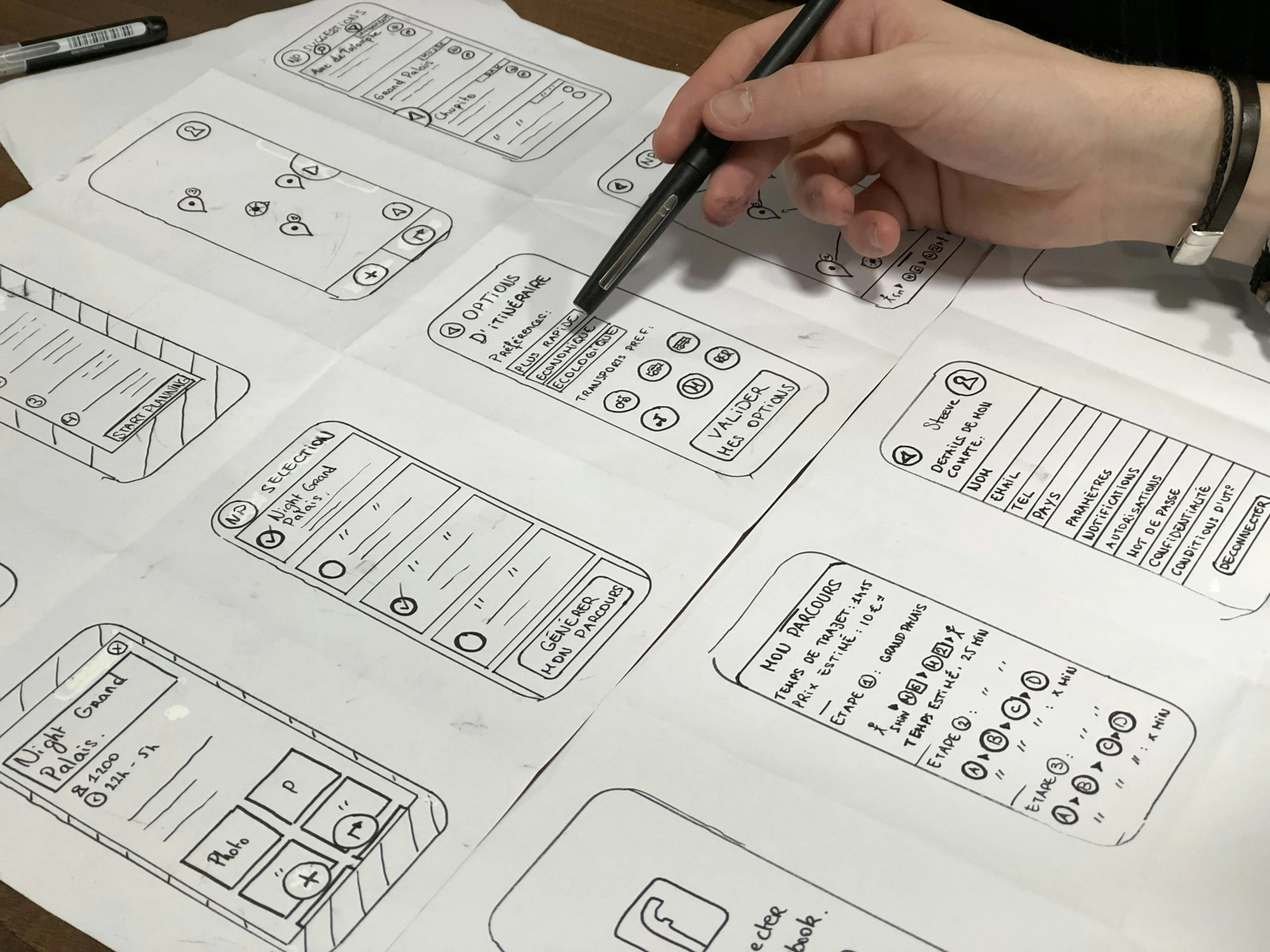
Yes. Take a photo of your sketch, attach it in RNBlocks Studio, and describe what each part should do. The agent uses the drawing as a reference for layout and builds a working React Native screen you can tap through in the preview.
How to get the best result
- Draw the main screens, not every screen: boxes for images, lines for text, clear buttons.
- Label the actions: "tap to save", "opens detail".
- Explain what matters: "Keep the bottom tab bar; the colors are just placeholders."
- Test the result and ask for focused changes.
A sketch is a reference, not a pixel spec
Say which parts must match and which are only inspiration. The agent builds real navigation and states that a drawing cannot show, such as empty and loading states.
Draw the behavior as well as the boxes
A sketch can be rough and still be useful. Draw the main content, label the important actions and show where each action leads. A rectangle labeled 'photo' tells the agent about layout. An arrow labeled 'open details' tells it about navigation.
For a reading app, start with a book list and one detail screen. Mark where a person adds progress and where it appears afterward. You do not need a polished illustration or a complete design system.
Photograph it clearly
Use even light, avoid glare and keep the paper reasonably straight. Crop out irrelevant surroundings without cutting off labels. A clear image is more useful than a highly stylized sketch with tiny unreadable text.
If several screens share one image, number them and describe their order. For complicated layouts, separate attachments can make the relationship easier to explain.
Attach a short written brief
Say who the app is for, what the person should finish and which visual details matter. Explain whether the drawing's colors are intentional or simply the pens you had available.
For example: 'This is a reading log. The first drawing is my book list. Tapping a book opens the second screen. Progress should remain after reopening. Keep the bottom tabs, but use the existing app colors.'
That gives the agent information the image cannot reliably communicate alone.
Expect decisions the sketch does not contain
The app still needs empty, loading and error states. It needs a rule for long titles and a usable layout when the keyboard opens. Saving needs a location and, if accounts are involved, access rules.
A sketch is a reference for a working product, not proof that all of those decisions have been made. Review what the agent adds rather than assuming every generated behavior came from your drawing.
Test the first result with the same task
Open a book, change progress, return to the list and reopen the app. Check whether the important information appears where the sketch intended. Then review visual differences.
Ask for focused refinements: 'Keep the navigation. Make the progress control easier to reach with one hand.' If you want to change the visual style, say which parts should remain.
Move from reference to release
Once the small journey works, add real data or services where needed and test on a physical device. A generated screen resembling paper is not yet a released app.
The advantage of sketching is making an idea concrete enough to discuss and test. You can discover missing behavior quickly, improve it through conversation and only then invest in the rest of the product.
Does the drawing need to look professional?
No. Clear labels and relationships matter more than artistic quality. Simple boxes can communicate a screen well if you explain the task and actions. A decorative illustration without readable controls may be less useful.
Can the agent infer missing interactions?
It may propose them, but you should review those decisions. State important rules explicitly, such as whether a saved item is private or whether tapping a card opens a new screen.
What if the first result differs visually?
Point to a specific difference and explain its importance. 'Keep the list layout, but make the progress control match the bottom placement in the sketch' is clearer than asking to start again without a reason.
Can I attach a screenshot from another product?
Use references appropriately and explain the pattern you want, rather than asking to copy branding or assets. Your app needs its own content and behavior. Remove private information before sharing any image.
How should I test the drawing's idea?
Give someone the intended task and let them try the generated version. Watch what they expect to tap. If the layout causes confusion, update the reference or the app with a focused change. The point is to make the idea testable, not to preserve every pencil line regardless of usability.
Questions people also ask
What kind of sketch works best?
A clear photo of a paper sketch or whiteboard with one screen per drawing. Label buttons and arrows so the agent knows what each action does.
Can I sketch several screens at once?
Yes, but describe the order: "Screen 1 is the list, tapping a card opens screen 2." Start with the screens needed for the main task.
Will the app look exactly like my drawing?
The layout follows your sketch; the visual style comes from your description. Ask for focused changes after the first version.
Common mistakes
- Expecting colors and fonts from a pencil sketch.
- Drawing every screen before testing the first two.
- Leaving out what should happen when a button is tapped.
Build it with RNBlocks
Start free in RNBlocks with a clear sketch and a short description of what its buttons should do. Our agent can turn the reference into a first mobile journey, then help you refine it in the same conversation. Test the behavior before expanding the design.
Ready to build?
Build, connect and publish iOS and Android apps with AI.