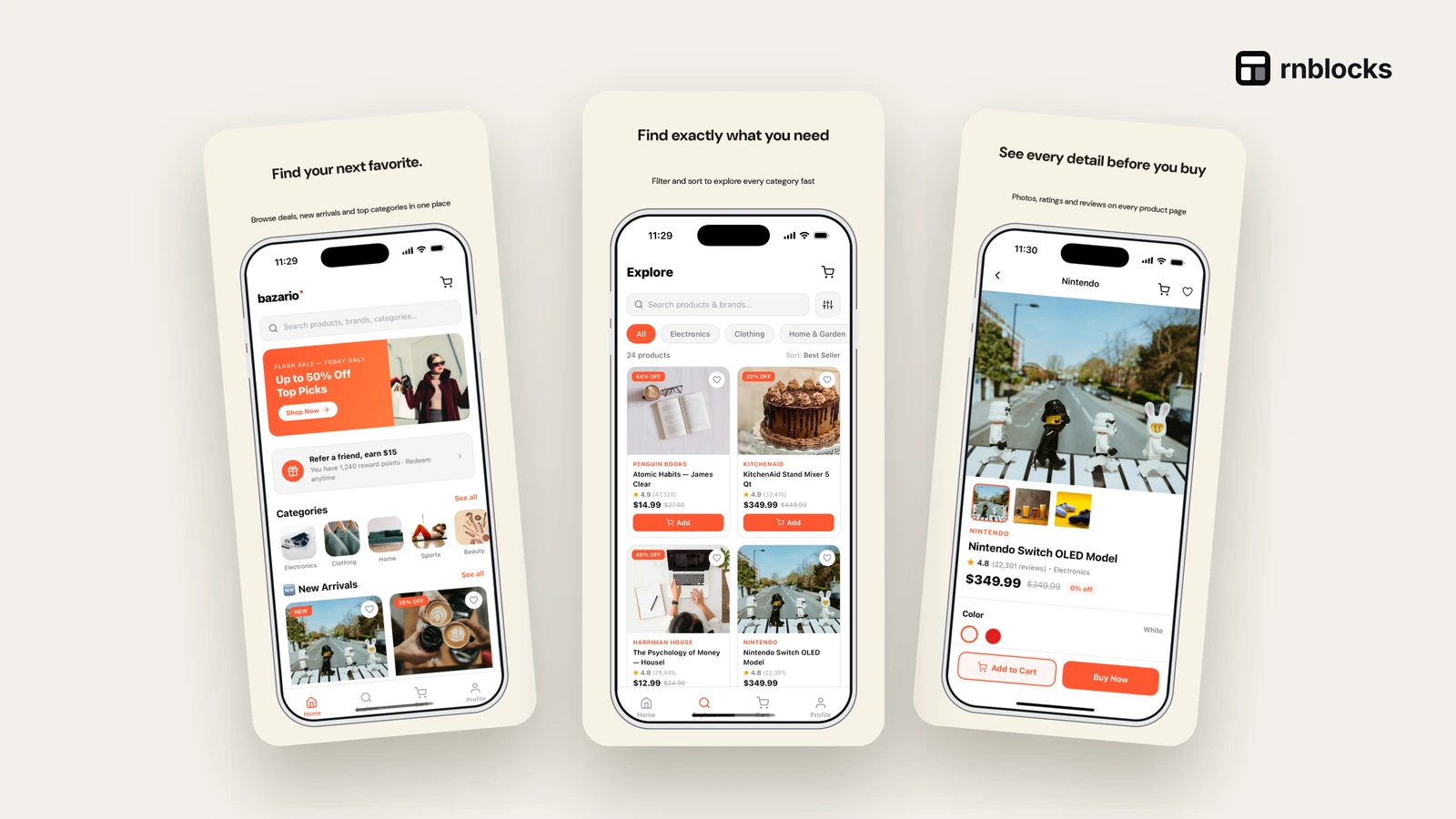
How to Make App Store Screenshots That Explain Your App
What makes store screenshots work, the sizes Apple and Google need, and how to plan a set that sells the main task in seconds.
How do I make good App Store screenshots?
Show one benefit per screenshot, using real screens from your app, with a short headline above each one. Lead with the main task, so readers can understand the app quickly. Make sure the screenshots match the build you submit.
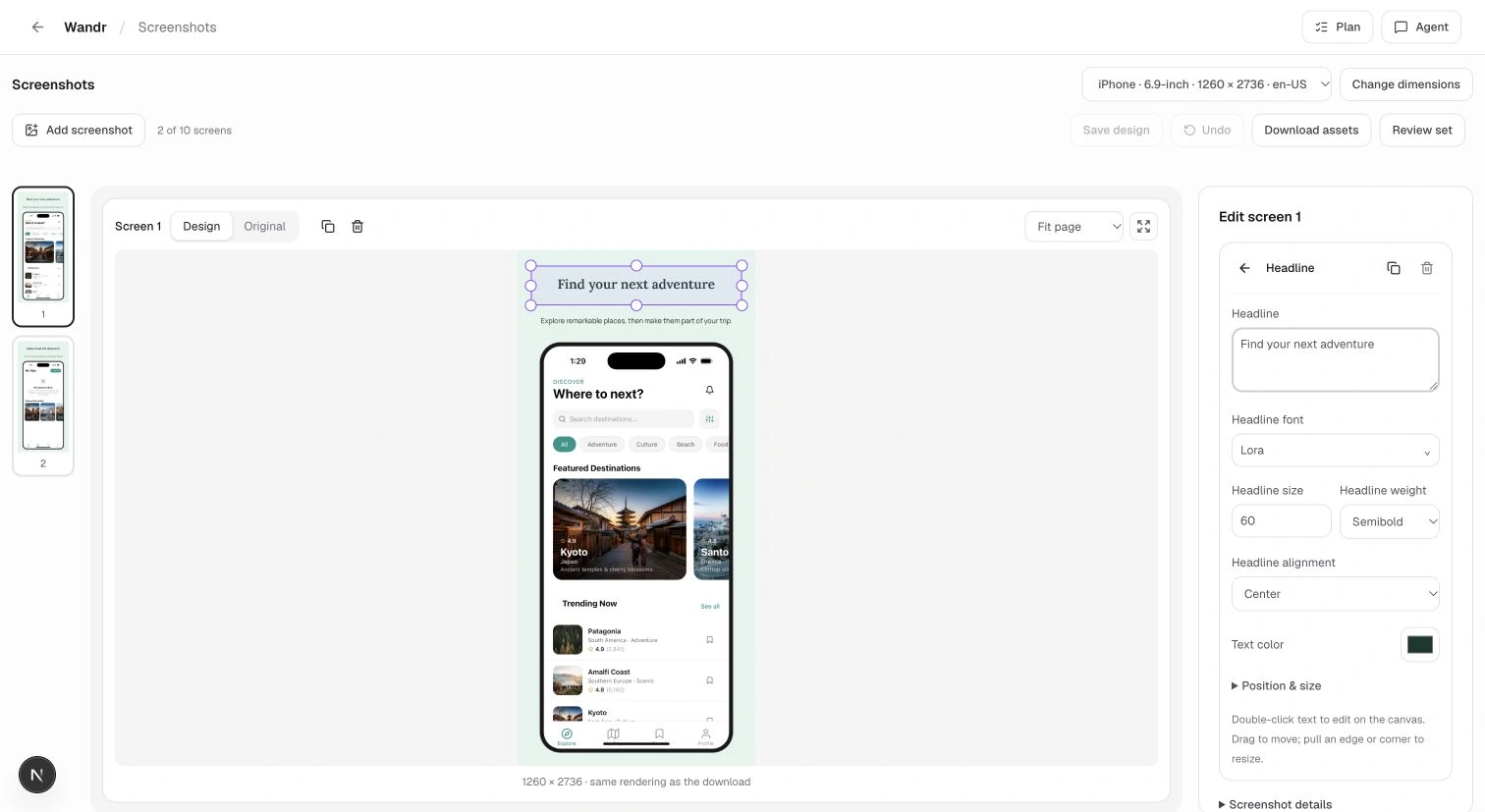
Plan the set
- Screenshot 1: the main benefit in five words, with the screen that delivers it.
- Screenshots 2 to 4: the steps of the main task.
- Last screenshot: a secondary feature or trust signal.
Required sizes (check current specs)
| Store | What you need |
|---|---|
| App Store | iPhone screenshots for the largest required display size; iPad if your app supports iPad |
| Google Play | At least 2 phone screenshots; a 1024 x 500 feature graphic |
Check the required device classes and accepted exports in the store console before uploading.
Headlines that work
- Short: five to seven words.
- About the person: "Plan your week of runs", not "Advanced scheduling engine".
- Readable on a small phone in search results.
Common mistakes
- Screens with placeholder or test data.
- Text too small to read in the store.
- Showing features the build does not have, a common rejection reason.
Build the story before opening a design tool
For a travel planner, a useful sequence could show finding a place, saving it to a trip and seeing the day's plan. Each image answers a question the prospective user has: what can I do here, how does it help me and what does the result look like?
Do not fill the set with five nearly identical home screens. Equally, do not show a secondary settings screen before explaining the main task.
Capture the real product cleanly
Use a device or simulator capture with realistic sample content. Remove personal information, debug overlays and broken images. Check that the app state exists in the version you are submitting.
If a screen needs a sample booking, create a believable one rather than leaving 'Test123' in the interface. Keep the data clearly fictional and avoid using a real person's private details. Use images and artwork you are entitled to display.
Size the text for the store, not your monitor
Open the exported image at approximately the size someone will see in search or on a phone. The headline should remain readable without zooming. Descriptions should be short enough to support the screen rather than compete with it.
A phone frame should not hide the app behind thick borders. Give the screenshot enough space to show the task. Keep important text away from edges where presentation can vary.
Write specific headlines
| Vague | More concrete |
|---|---|
| Your journey, reimagined | Keep your trip plans together |
| More possibilities | Save places to visit later |
| Built for you | See today's stops in order |
Use claims the screen and product can support. 'Never miss a booking' is a much stronger promise than showing a booking reminder. Do not add ratings, awards or usage numbers you cannot verify.
Prepare separate store exports
Apple and Google accept different assets and dimensions. Check the required device classes in App Store Connect and the asset requirements in Play Console for the app you actually support. An iPhone frame on a Google Play screenshot can confuse the presentation.
Keep editable originals as well as exports. When the app changes, it is easier to update the corresponding screen than rebuild a flattened promotional image from scratch.
Review the set as a sequence
Read just the headlines first. Do they describe a coherent product? Then inspect the screens. Can someone connect each headline to visible behavior? Finally, check every export at full resolution and at phone size.
An attractive screenshot is useful when it explains the app honestly. It cannot compensate for a listing that promises features absent from the build.
Do I need a headline on every image?
No. A clear app screen can sometimes explain itself. Add text when it clarifies the task, and keep it subordinate to the story. Filling every available area with copy can make a screenshot harder to scan.
Should I show the same design in every language?
A consistent system helps, but translated text can wrap differently and some examples may not fit the audience. Review each localized export rather than assuming the original layout still works.
Can I use generated imagery?
Use it where appropriate and permitted, but do not invent an app state or feature. A decorative background and a simulated product result are different things. The store assets should remain faithful to the released experience.
Should I copy a successful app's screenshot set?
Study hierarchy and sequence, then create your own assets. Copying another product's wording or screens can misrepresent your app and introduce rights issues. Your set needs to explain your actual task.
How should I compare results?
Use store analytics and supported experiments where available. Keep the audience and other listing changes in mind. A download change after a redesign does not automatically prove the screenshot alone caused it. Record what changed and avoid presenting a small sample as a universal conversion rule.
Keep a consistent source of truth
Save the screen capture and editable design together, with the app version they describe. If a feature changes, you can identify which assets need revision. This is especially useful when you prepare several languages or store sizes and do not want an old headline or outdated screen to slip into an otherwise current submission.
Build it with RNBlocks
RNBlocks includes store screenshot tools in the publishing workspace. Use your real app screens, refine the wording with our agent or the editor and inspect the exports. Build the app and prepare the materials that explain it in the same workflow.
Ready to build?
Build, connect and publish iOS and Android apps with AI.