My App Works in the Preview. Why Can't I Install It on My Phone?
A preview, a build and a store release are different things. What each one is, and what you need to get your app installed on a real phone.
Why can't I install my app when it works in the preview?
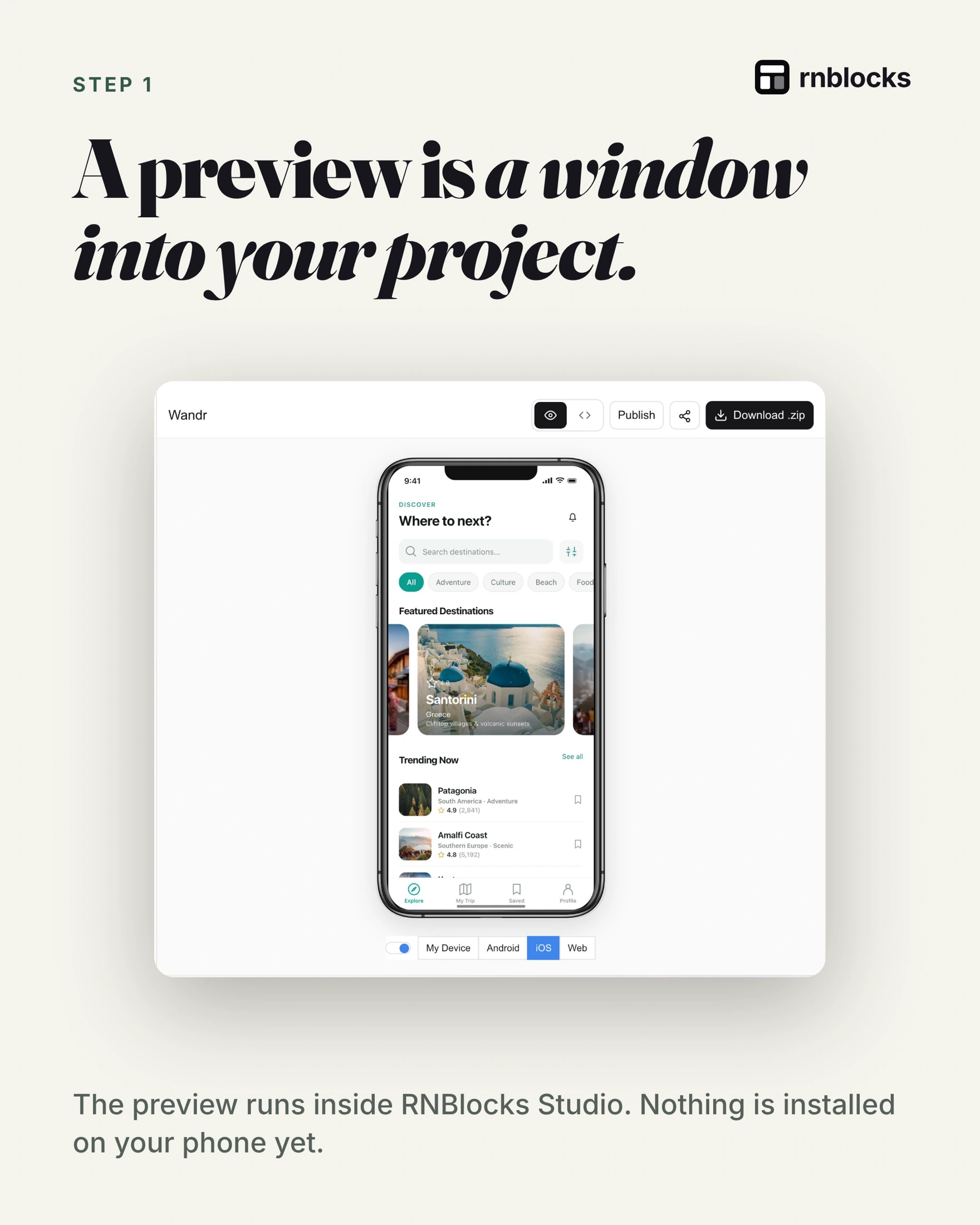
A preview runs your project inside a tool, such as an app builder's browser preview or Expo Go. It is not an installed app. To put the app on a phone like any other app, you need a build: a packed, signed file for iOS or Android. To share it with strangers, the build then goes through TestFlight, Google Play testing or a store release.
What a preview is
A preview shows your project running while you work on it. In tools based on Expo, you can also open it on your own phone with Expo Go, an app that runs projects during development. Expo Go includes a fixed set of native features, so anything outside that set (some payment, sign-in or hardware libraries) will not work there.
What a build is
A build compiles your project into the actual app file: an .ipa for iPhone or an .aab / .apk for Android. Builds are signed with your developer credentials. Expo Application Services (EAS Build) can make builds in the cloud, so you do not need Xcode or Android Studio on your computer.
There are different build types:
| Build | What it is for |
|---|---|
| Development build | Testing native features during development |
| Simulator build | Running in the iOS simulator on a Mac; cannot be installed on a phone |
| Internal or device build | Installing on specific registered test phones |
| Store build | Uploading to App Store Connect or Google Play |
How to get it onto real phones
- Android: an
.apkcan be installed directly on a phone you own. For testers, use Google Play internal or closed testing. - iPhone: a device build needs the phone registered in your Apple account. For testers, use TestFlight with a store build.
Then publishing
A store listing, review and release come after a working build. A preview session is never a store submission.
Common mistakes
- Expecting a simulator build to install on a phone.
- Testing only in Expo Go, then discovering a native library fails in the real build.
- Sending testers a preview link instead of a test build.
Choose the result you actually need
People use 'put it on my phone' to mean several different things. You might want to check the layout yourself, send a beta to five friends, or publish an app anyone can find. These are different destinations, with different setup.
| Your next goal | Suitable route |
|---|---|
| Check a supported screen while building | Builder preview or Expo Go |
| Test your own native libraries | Development build |
| Install an Android test directly | Signed APK |
| Invite iPhone beta testers | TestFlight |
| Reach the public | Reviewed store release |
Start with the smallest route that answers your current question. You do not need a public listing to discover that the keyboard covers your booking form. Equally, a browser preview cannot prove that push notifications work in the installed app.
Why Android has two common file types
An APK is an installable Android package. An AAB is an App Bundle used by Google Play to produce suitable installation packages for different devices. You generally upload the AAB to Play Console rather than asking someone to tap it on their phone.
If an Android tester says 'the file will not open,' first identify which file you sent. If it is an AAB, sending it again will not turn it into an APK. Use the appropriate testing track or produce the direct-install artifact you need.
On iPhone, the file extension alone is also insufficient. An IPA needs signing and a permitted distribution route. A store-signed upload and an ad hoc build for registered devices are not interchangeable.
A QR code is a doorway, not a build type
A QR code can point to a development session, an installation page or a testing invitation. Ask what opens after scanning. Does the person land in Expo Go, a browser, TestFlight or an actual installation flow?
Expo Go also has project-access and SDK compatibility limits. In particular, published EAS Updates in Expo Go are restricted to projects you own or organizations you belong to. Do not use that route as an unrestricted public beta invitation. For outside testers, choose an appropriate installed build or store testing track.
Follow a repeatable troubleshooting order
- Identify the device: physical iPhone, Android phone or simulator.
- Identify the artifact: source ZIP, APK, AAB, IPA or preview link.
- Identify its destination: development, registered-device testing or store distribution.
- Check the account, signing and device eligibility for that destination.
- Read the installation error before making another build.
This prevents expensive guesses. A simulator build cannot be fixed by changing the phone's browser. An expired testing build needs replacement, not a new app icon. An app that installs but fails on launch needs runtime investigation rather than another invitation.
Test more than whether the icon appears
Use a fresh installation and finish one complete task. Create a booking, save a note or send the message the app exists to handle. Then close it and return. Try without a connection and without optional permissions.
Record which build you installed. Otherwise you can end up reporting a bug that was fixed in a newer version while the tester is still opening yesterday's app. The useful milestone is a person completing the task on the intended device, not merely a successful build log.
Questions people also ask
Is Expo Go the same as my app?
No. Expo Go is a host app for development. Your real app has its own icon, name and build.
Do I need a Mac to make an iPhone build?
Not with cloud build services such as EAS Build. You still need an Apple Developer membership to sign and distribute.
Build it with RNBlocks
RNBlocks lets you build a mobile app, inspect it in preview and continue toward an installable version with our publishing agent. Start free with one small app journey. When it works, ask for the next device-testing step rather than treating the preview as the finished release.
Ready to build?
Build, connect and publish iOS and Android apps with AI.