How to Add Voice and Text-to-Speech to an App with ElevenLabs
Give your mobile app a natural voice with the ElevenLabs connector in RNBlocks: setup, testing and costs.
How do I add a voice to my app?
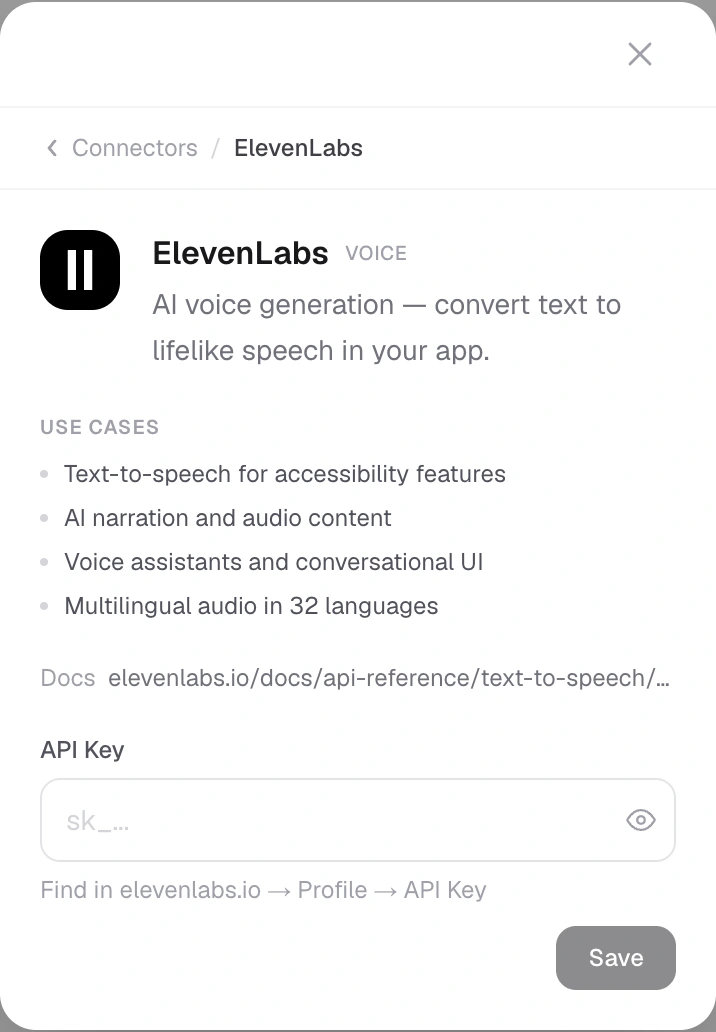
Describe what should be spoken, for example "Read each recipe step aloud when I tap play", and connect ElevenLabs when asked. RNBlocks keeps the key outside your app's code. Test playback in the preview and on a real phone.
Steps
- Describe the voice feature and when it plays.
- Connect ElevenLabs in App options (+) → Connectors.
- Test on a phone with sound on and off, and with a slow connection.
Costs
ElevenLabs bills its own usage, separate from RNBlocks credits.
Pick a listening task
For a recipe app, a practical voice feature reads the current cooking step when the person taps Play. It does not need to narrate the entire interface or start speaking automatically on launch.
Specify the text source, language, voice and controls. Decide whether the person can pause, replay a step or move to the next one while audio is playing.
Text-to-speech and voice conversations differ
Text-to-speech turns written text into audio. Speech recognition turns spoken input into text. A live voice conversation combines several components and needs its own interaction design. Connecting a text-to-speech provider does not automatically implement all three.
Start with the smallest capability that solves the listening task. It is easier to test and usually easier to budget.
Plan the audio lifecycle
Show a loading state while generating speech. When the audio is ready, play it through the app's audio controls. Stop or manage it deliberately when the person changes screens, receives a call or disconnects headphones.
A second tap should not accidentally generate and play overlapping copies. If the person moves to another recipe step, define whether the old narration stops or finishes.
Streaming and saved audio serve different needs
Streaming can begin playback before a whole file is generated. Saving a completed file can support replay and an intentional offline feature, subject to provider terms and the app's storage design.
Generation needs an appropriate connection; offline playback works only for audio already stored and available to the device. Do not label the whole feature offline because one previously played clip remains cached.
Test the actual phone
Check speaker playback, headphones, silent mode behavior and interruptions. Platform audio-session settings affect what happens, so describe the intended behavior and test the installed build.
Also test a long passage, an empty passage and a failed provider request. Keep the written instructions accessible when audio fails or is inappropriate.
Choose voices responsibly
Use voices and assets you have permission to use under the provider's terms. Do not assume a voice resembling a known person is appropriate for your app. If you add cloning or user-uploaded audio, that is a broader feature with additional consent and data-handling work.
Keep costs understandable
Speech providers charge according to their plans and usage units. Repeatedly generating the same passage can waste allowance; caching may help when permitted and suitable. Private content needs appropriate protection in storage.
Test one complete listening journey before adding more voices. The important result is someone hearing the right instruction, controlling playback and continuing their task without confusion.
Can I keep the written version?
Yes, and it is usually useful. Audio may be inappropriate in public, unavailable without signal or inaccessible to some people. Do not make spoken output the only route to important instructions without an appropriate alternative.
Should every tap regenerate speech?
Not necessarily. Reusing a suitable stored result can improve replay and reduce usage, where terms and privacy requirements permit it. Make sure edited text does not keep playing an outdated recording.
Can people choose playback speed?
If the product supports it, test that the controls remain clear and the speech stays usable. The right level of control depends on the task. A short instruction and a long article may need different experiences.
Does connecting ElevenLabs add microphone recording?
Not by itself. Text-to-speech generates spoken audio from text. Recording, transcription and live conversation are separate features with their own permissions, interfaces and data handling.
What should a first voice test include?
Use one short passage, one longer passage and a failure case. Try pause, resume, navigation away and headphones. Check that the app does not speak over itself or continue unexpectedly after leaving the screen. The successful outcome is controlled listening that helps the person finish their task, not merely an audio file arriving from the provider.
Test an edited passage
Change the source text and replay it. Confirm the app does not keep using an obsolete cached recording. A useful cache needs a rule connecting the audio to the text version, voice and other relevant settings. This small check can catch a confusing mismatch between what the screen says and what the person hears.
Questions people also ask
Can the app speak in different voices?
Yes. ElevenLabs offers many voices; describe the voice you want, such as calm, friendly or energetic.
Does voice work offline?
Generating speech needs a connection. You can save generated audio for offline playback if your app needs it.
Is speech generation instant?
Short text usually returns quickly, but show a loading state for longer passages and slow networks.
Common mistakes
- Autoplaying audio without the person asking.
- No way to stop or pause playback.
- Forgetting to test with the phone on silent.
Ideas for voice features
- Read recipe or workout steps aloud, hands free.
- Narrate saved articles for a commute.
- Spoken prompts in a language-learning app.
Build it with RNBlocks
Use RNBlocks to add a focused voice feature, such as reading a recipe step aloud. Connect ElevenLabs through the supported workflow, refine the controls and test playback on a phone. Start with one complete listening task before expanding to a larger voice experience.
Ready to build?
Build, connect and publish iOS and Android apps with AI.